 Nederlands
  Français
 English
 Deutsch
 Español
 Italiano
 Português
 Русский
 中文 (中国)
 日本語
日本語
Products: STREAM 100 ; STREAM 200 XLR
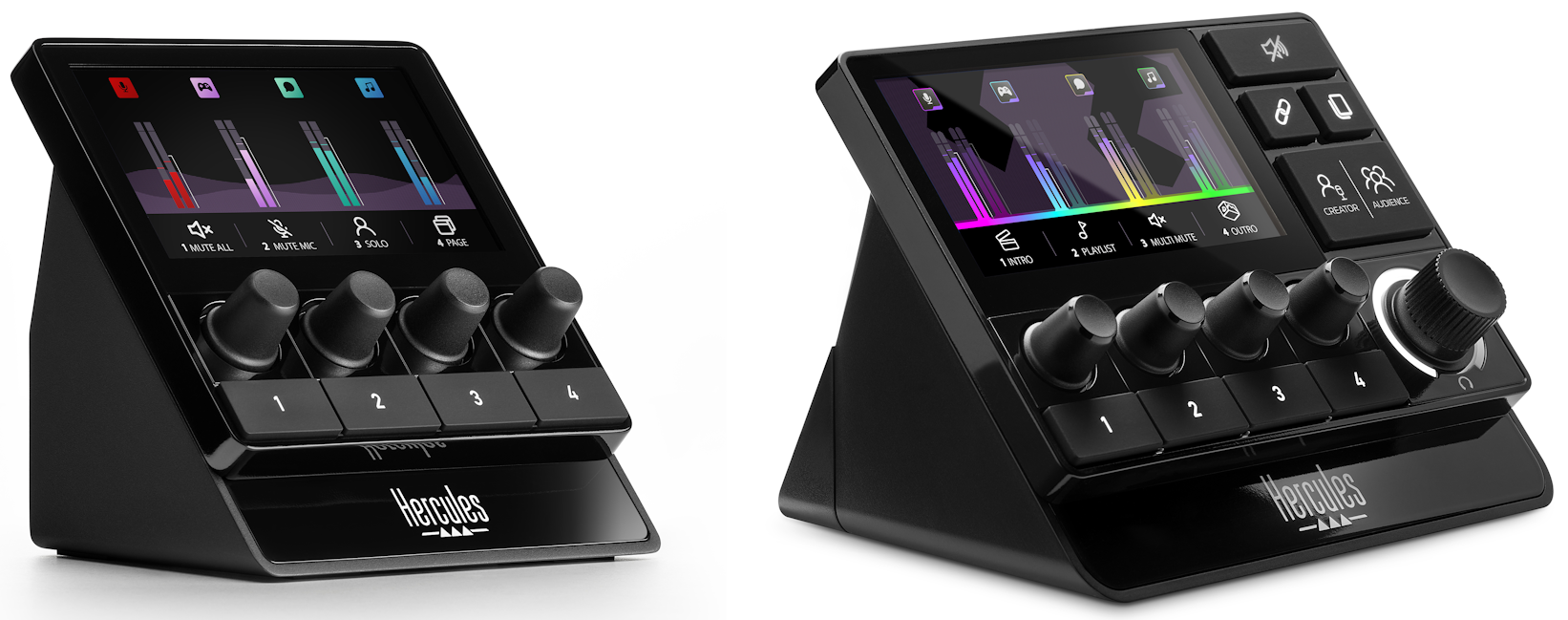
This document provides guidance on the actions to take following an issue related to the firmware (FW) update of your Stream 100 or Stream 200XLR. It also covers troubleshooting steps for any other issues related to drivers or the SDK.
Stream 100
The firmware update of your Stream 100 may occasionally fail for various reasons (such as network interruptions or brief USB disconnections). In such cases, you may notice issues on the device screen, such as overlapping labels or frozen vumeters.
We recommend returning to the Settings page and retrying the firmware update by clicking “Update now.”
The Firmware update status will switch to “In Progress” while it enters boot mode, and the installation progress will then be displayed via a progress bar.
Once the process is complete, the device will power off. You can then simply plug it back in.
In some cases, the device may no longer be recognized by the application.
When this happens, Stream Control will display “No device found”, and the screen of your Stream 100 will remain completely black.
This issue, often related to a failed firmware update, can be resolved by following these steps:
1. Unplug the device while keeping Stream Control open
2. Press and hold knobs 1 & 4
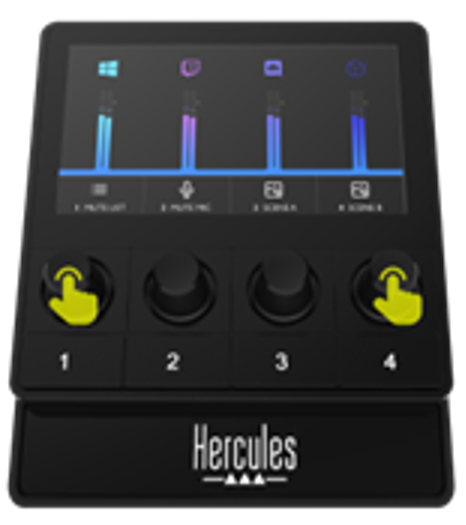
3. Reconnect the Stream 100 while continuing to hold the knobs
Stream Control will then detect your Stream 100 in “boot mode” and automatically prompt a forced installation of the latest firmware. Click “Update” to start the firmware update.
The firmware update status will switch to “In Progress”, and the installation progress will be shown via a progress bar.
Once the process is complete, the device will power off. You can then simply plug it back in.
Stream 200XLR
The firmware update of your Stream 200XLR may occasionally fail for various reasons (such as network interruptions or brief USB disconnections). In such cases, you may notice issues on the device screen, such as overlapping labels or frozen vumeters.
We recommend returning to the Settings page and retrying the firmware update by clicking “Update now.”
The Firmware update status will switch to “In Progress” while it enters boot mode, and the installation progress will then be displayed via a progress bar.
Once the process is complete, the device will power off and restart by himself.
In some cases, the device may no longer be recognized by the application.
When this happens, Stream Control will display “No device found”, and the screen of your Stream 200XLR will remain stuck in boot screen.
This issue, often related to a failed firmware update, can be resolved by following these steps:
1. Unplug the device while keeping Stream Control open
2. Press and hold the power button
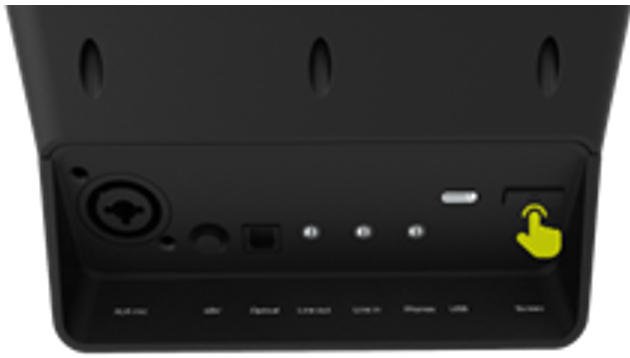
3. Reconnect the Stream 200XLR while continuing to hold the button
Stream Control will then detect your Stream 200XLR in “boot mode” and automatically prompt a forced installation of the latest firmware. Click “Update” to start the firmware update.
The firmware update status will switch to “In Progress”, and the installation progress will be shown via a progress bar.
Once the process is complete, the device will power off and restart by himself.
Device not detected
An incorrect installation of the Hercules drivers may lead to issues with the Hercules Stream Control SDK.
As a result, your device may not be properly detected by your computer, and Stream Control will not function correctly.
You may also see an “Error loading SDK” message when launching the software.
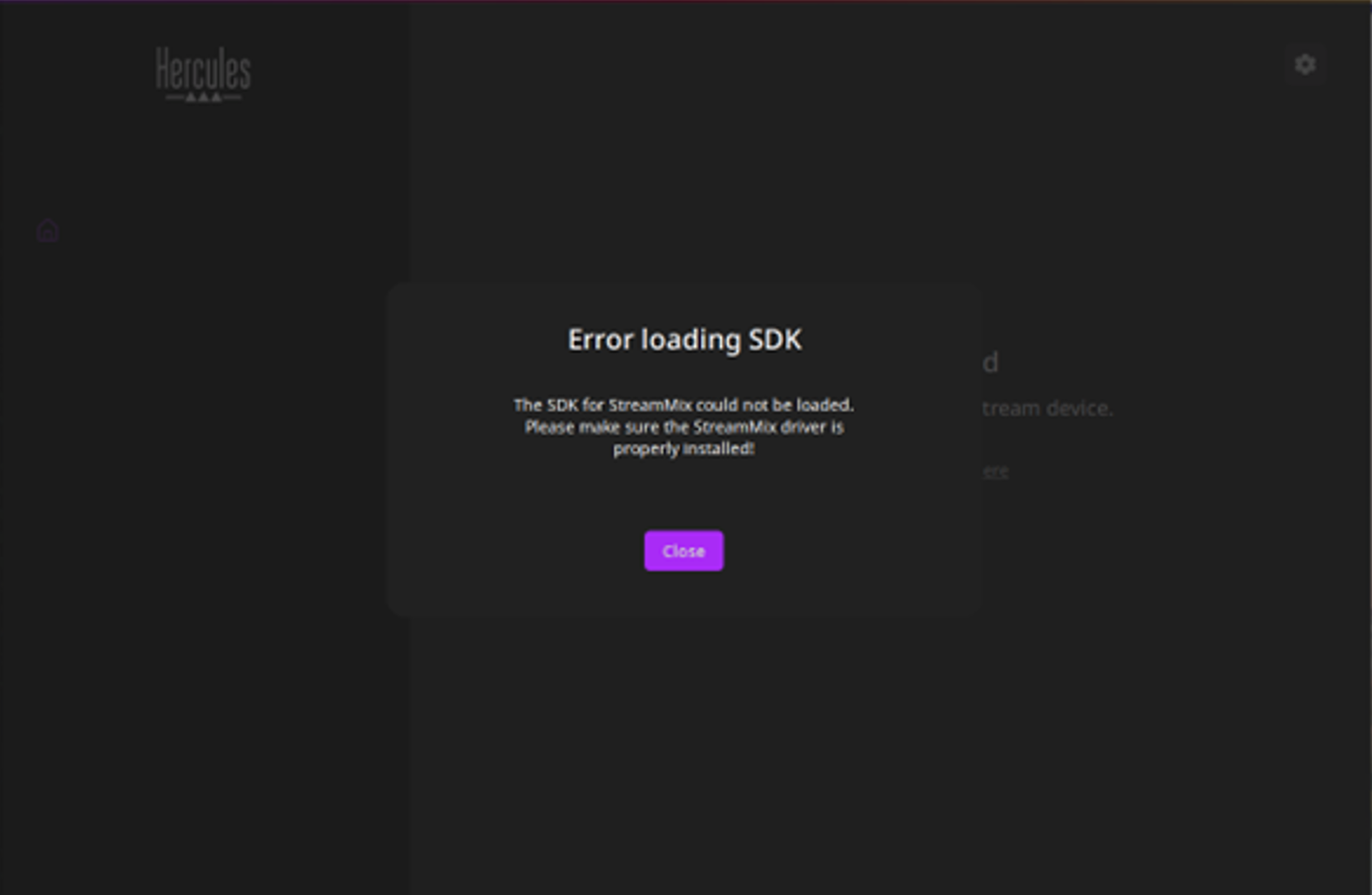
To resolve this issue, you need to completely uninstall and then reinstall the drivers included with the software. Please follow these steps:
1. Close Stream Control
2. Open the list of installed applications in Windows
3. Uninstall Hercules Stream Control (this will also uninstall “HSM Series Drivers”)
4. Restart your computer to ensure no residual files remain before reinstalling
5. Reinstall Hercules Stream Control
6. Accept the prompt to restart your computer at the end of the installation (very important)
If all these steps are followed correctly, the driver and SDK issues should be resolved.