 English
  Français
 Deutsch
 Español
 Italiano
 Nederlands
 Português
 Русский
 中文 (中国)
 日本語
日本語
Software: Hercules Stream Control
App: Twitch
How to connect on Stream Control
1. On the Twitch settings page, click the « Connect to Twitch » button. (Make sure that you are already connected on twitch)
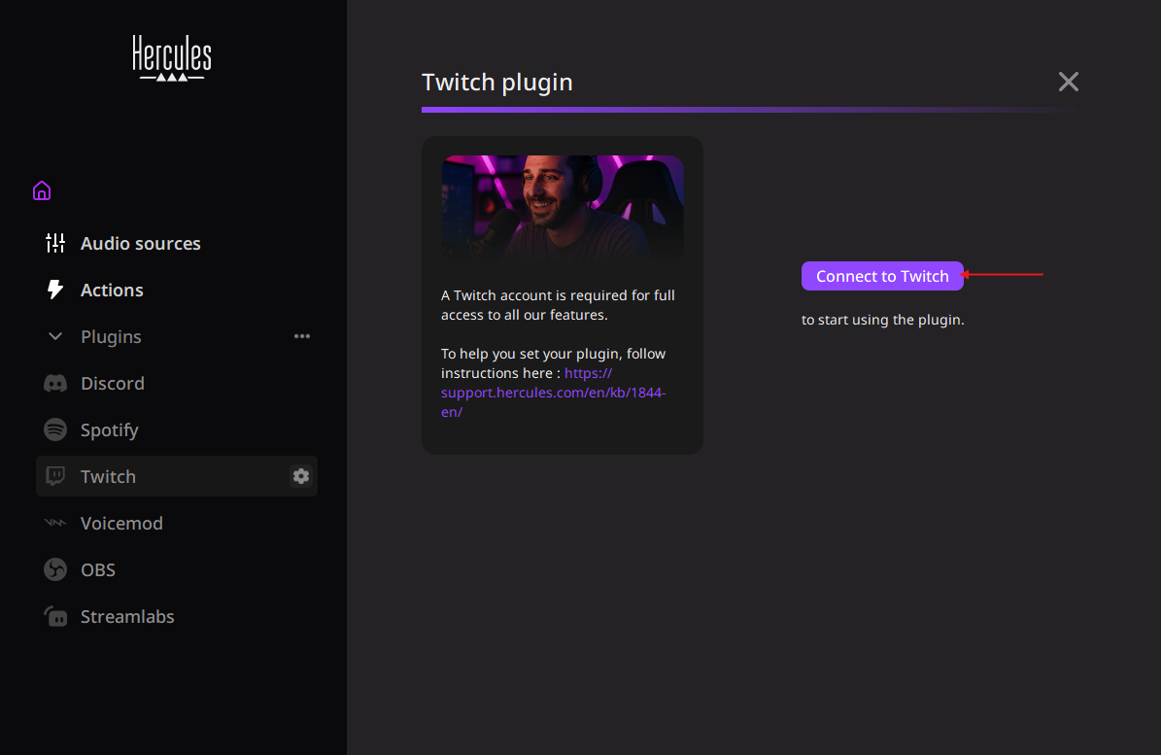
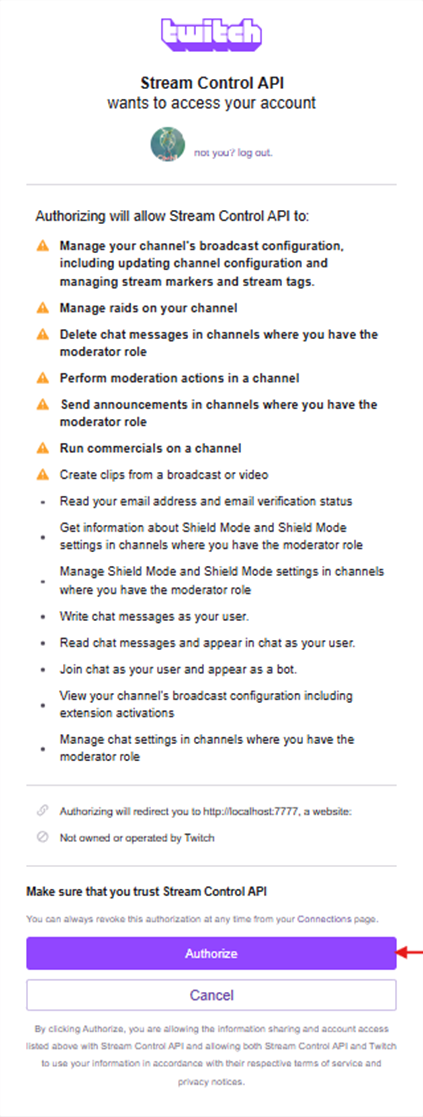
2. Authorize the Stream Control API to access your Twitch account.
(Note: We do not access your personal data. The app only allows us to control certain Twitch actions from Stream Control.)
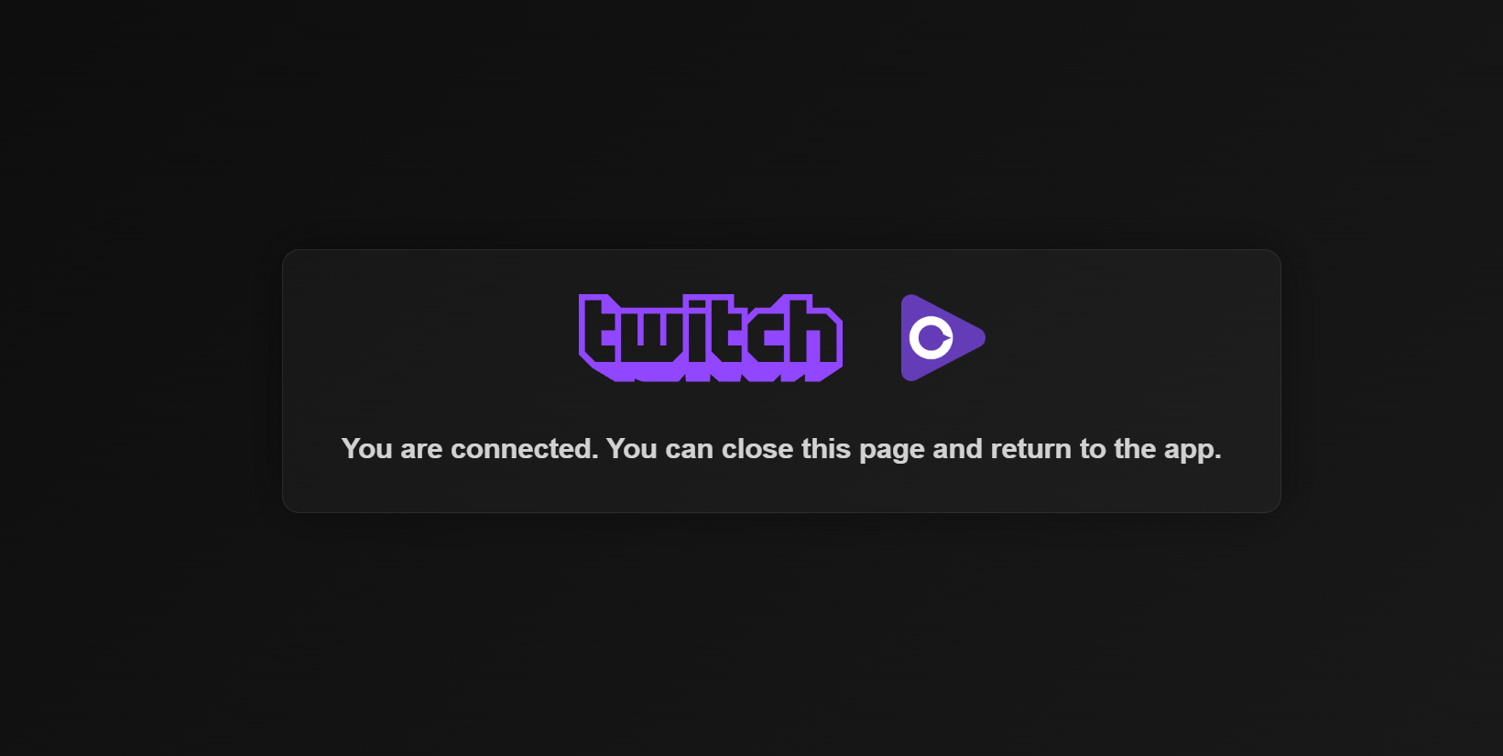
3. This web page will inform you that you are well connected
4. If the connection fails, a warning pop-up will appear.
Connection issues may be caused by:
- Manually cancelling the authorization request from Twitch
- Losing your internet connection
- Temporary Twitch server outages
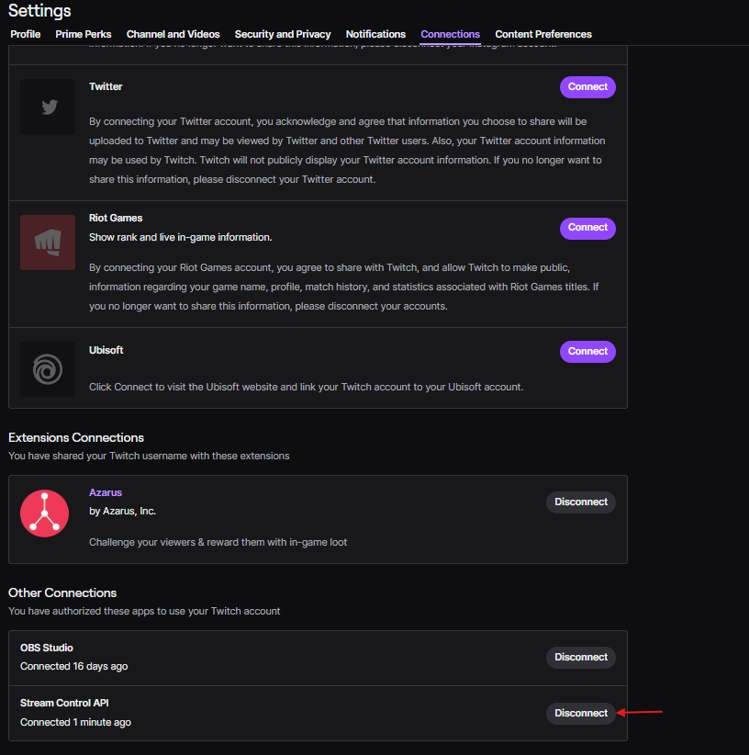
5. You can also disconnect from Twitch by pressing “Disconnect” on Stream Control
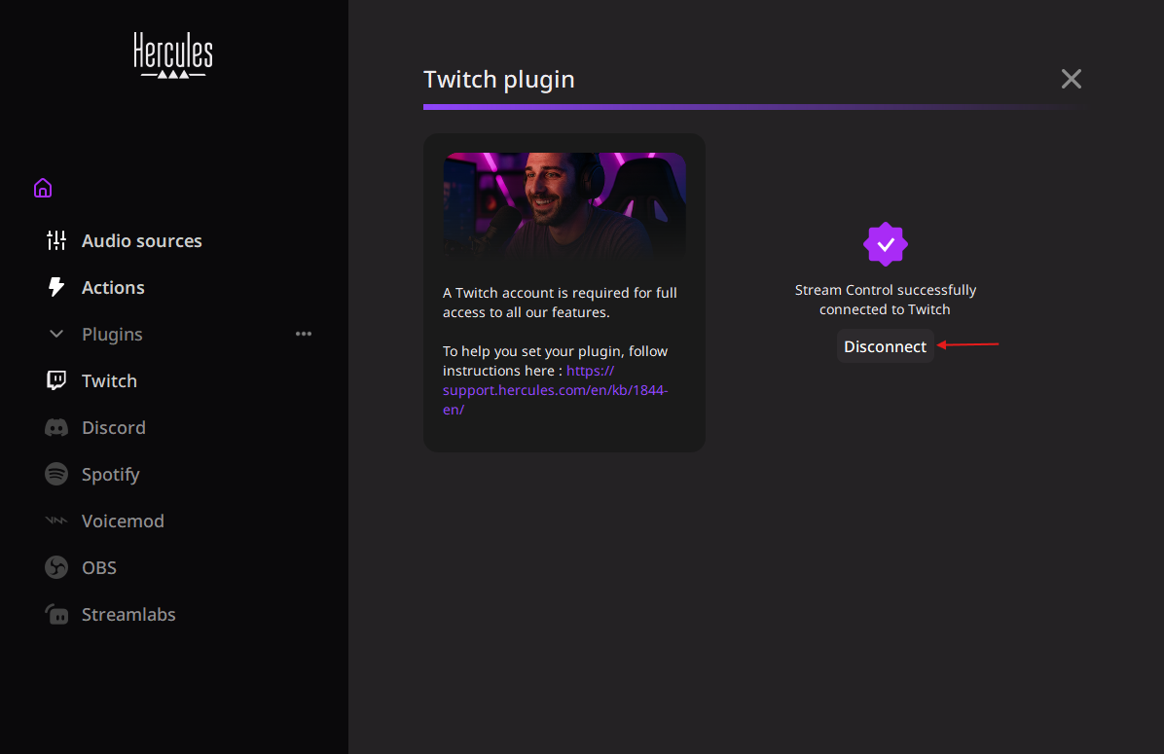
and by cutting the connection on Twitch settings
Twitch features available in Stream Control
Once Stream control is successfully connected to Twitch, you will be able to use the following features:
- Create Clip - Action
- Create Stream Marker – Action
- Play ad – Action
- Shield mode – Action
- Manage chat (sub only, follow only, emote only, slow mode, clear chat) - Action
- Send message – Action
- Send announcement – Action
- Viewer count – Display